
Live collaboration in projects
Pair programming, a code review with a friend, or a teacher walking a class through an app - some things are simply better done together. Live collaboration turns any of your projects into a live room: the people you invite open the same project and edit the same files with you, in real time, while you talk it through in a built-in video call.
Premium feature
Starting a live session requires Premium access - your own subscription or one provided by your school or organization. The people you invite only need a DojoCode account.
Starting a live session
Open your project in the editor and switch to the Collaboration tab in the right-hand panel. Click Go Live to open a live room for the project.
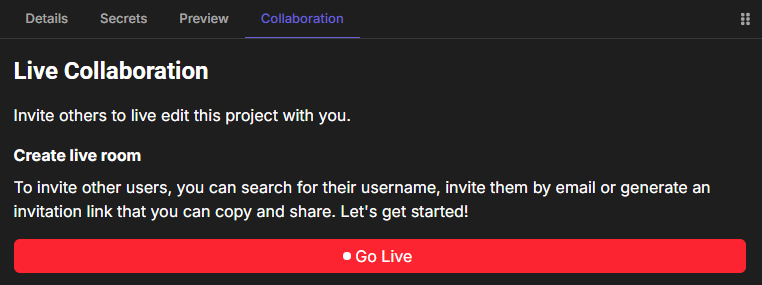
Fig. 1 - The Collaboration tab of the project editor
You are now the host of the session: the panel shows You are live!, a red Live badge appears in the header, and the panel fills with everything you need to run the session - inviting people, the video call, the live mode and the list of participants.
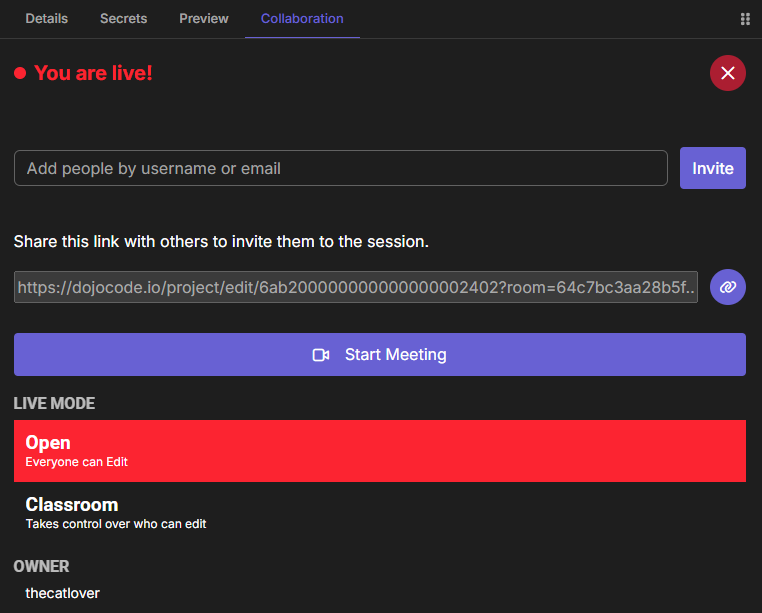
Fig. 2 - The live panel right after going live
Inviting people
There are two ways to bring people into your session:
- By username - type a username in Add people by username or email, pick the person from the suggestions and click Invite. They get a notification in DojoCode and an email with a link to the session.
- By link - copy the invitation link with the button next to it and share it however you like: chat, email, your class group.
Whoever opens the invitation lands directly in your project editor, inside the session. They need to be logged in to join. As soon as someone connects you see a notification, and they appear in the participants list of your panel.
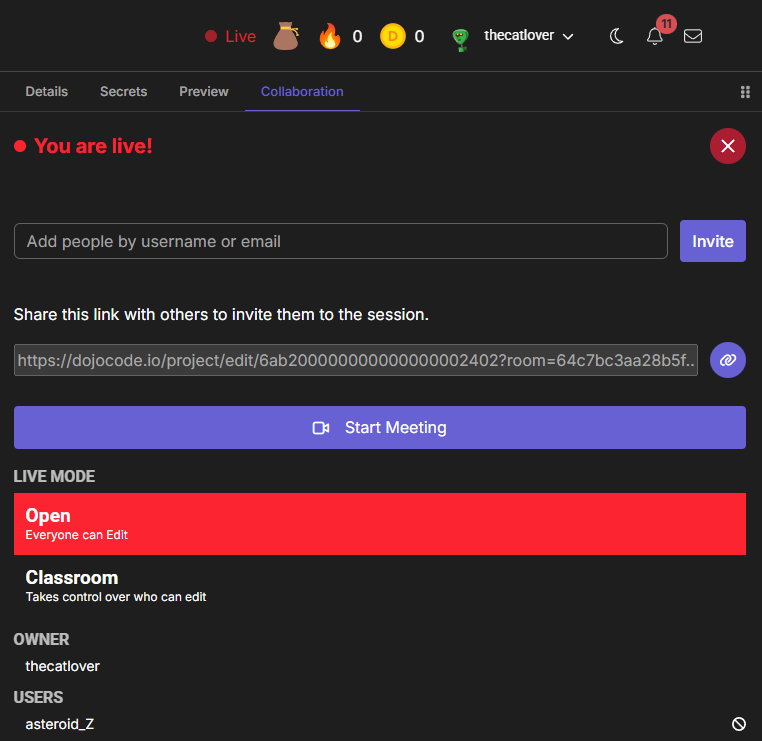
Fig. 3 - A participant joined the session
The link belongs to the session
The invitation link only works while the session is live. Once you stop it, the link stops working - going live again creates a new one.
Editing together
Everyone in the session works on the host's project files, live:
- Live cursors - every participant gets a color. You see their cursor and selection in the editor, labelled with their username.
- Who is where - the number next to a file in the file tree shows how many people have that file open - collapsed folders show it too, for the files inside them.
- File operations - creating, renaming, moving and deleting files and folders is synced to everyone instantly.
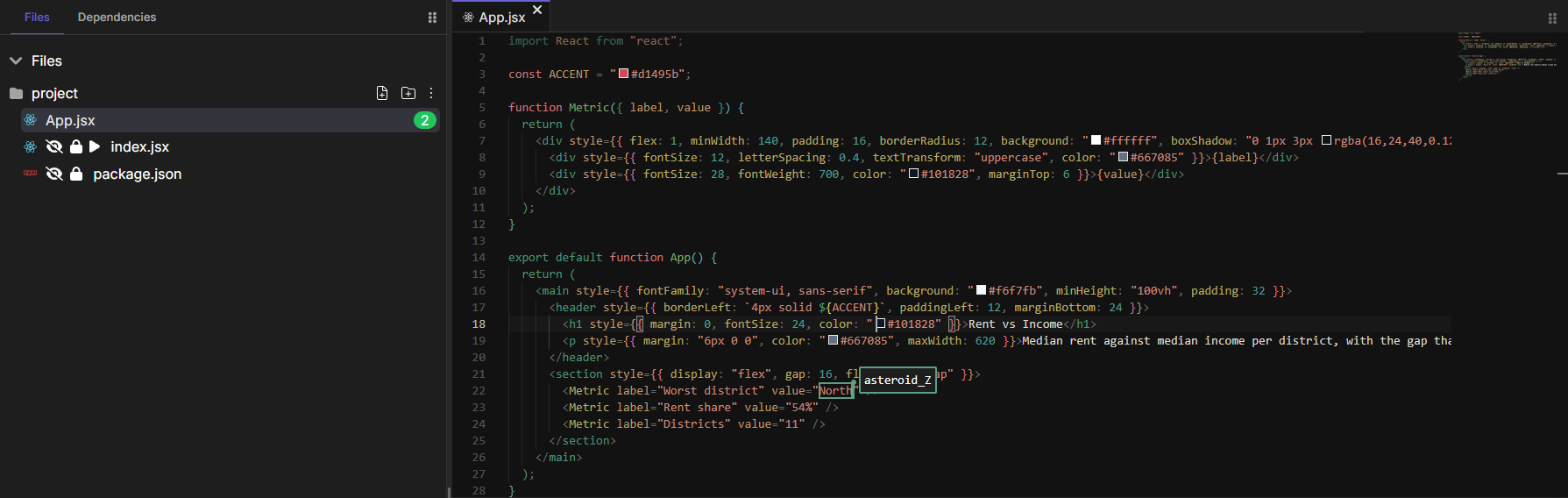
Fig. 4 - Another participant's selection in the editor, and two people on App.jsx in the file tree
The project stays yours. Participants edit your files during the session, but only you save the project - and participants never see your Secrets or your Database. The AI assistant is available to them in view mode only.
On their side, the Collaboration tab shows You are in a live session, together with the list of participants:
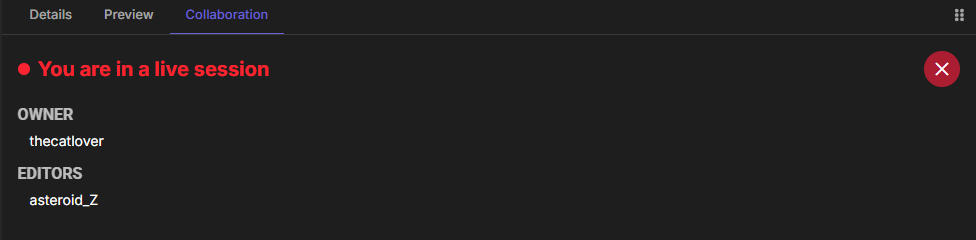
Fig. 5 - What a participant sees in the Collaboration tab
Live modes: Open and Classroom
Under LIVE MODE you choose who can edit:
- Open (default) - everyone can edit. Perfect for pair programming and free-flowing teamwork.
- Classroom - you take control over who can edit. Participants join as spectators: they follow along live, but can't change the code until you allow them.
Everyone in the session is notified when you switch modes.
In Classroom mode, every participant in the list gets extra controls:
- Make Editor (+) - lets them edit. They move to the EDITORS list.
- Make Spectator (-) - takes editing back. They return to the USERS list.
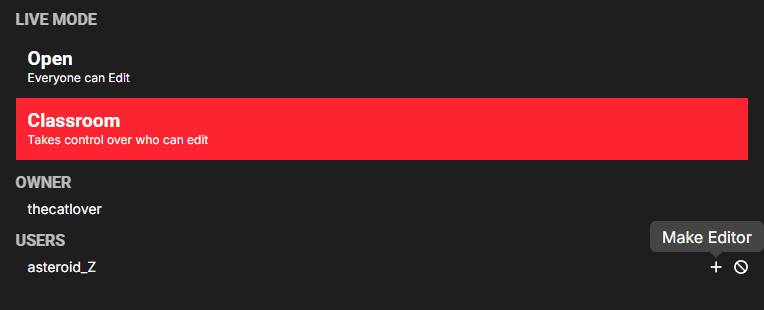
Fig. 6 - Classroom mode: participants are spectators until you make them editors
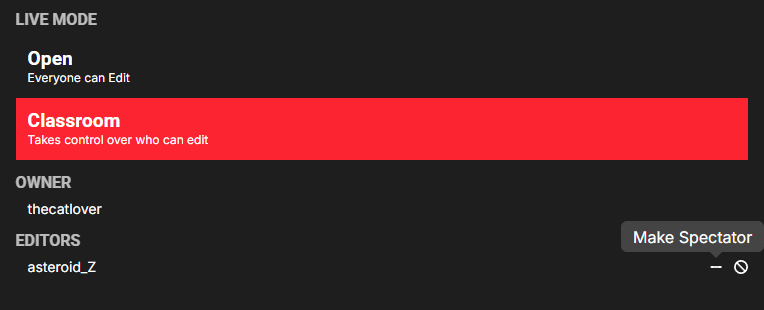
Fig. 7 - The participant can now edit; Make Spectator takes it back
Managing participants
The participants list is split into OWNER (you), EDITORS, USERS and KICKED USERS. Next to every participant you find Kick User (the ⊘ button), which removes them from the session right away. Kicked users can't rejoin until you let them back in with Unkick User from the KICKED USERS list.
Video call
Click Start Meeting to open a video call with everyone in the session. The call opens in a floating window that you can move around and maximize, and that stays with you as you move around DojoCode. Inside the call you can turn your microphone and camera on or off, share your screen, raise your hand, adjust the call quality and change your settings.
Only the host can start the call, and End Meeting closes it for everyone. The video call window isn't available on small screens such as tablets and phones.
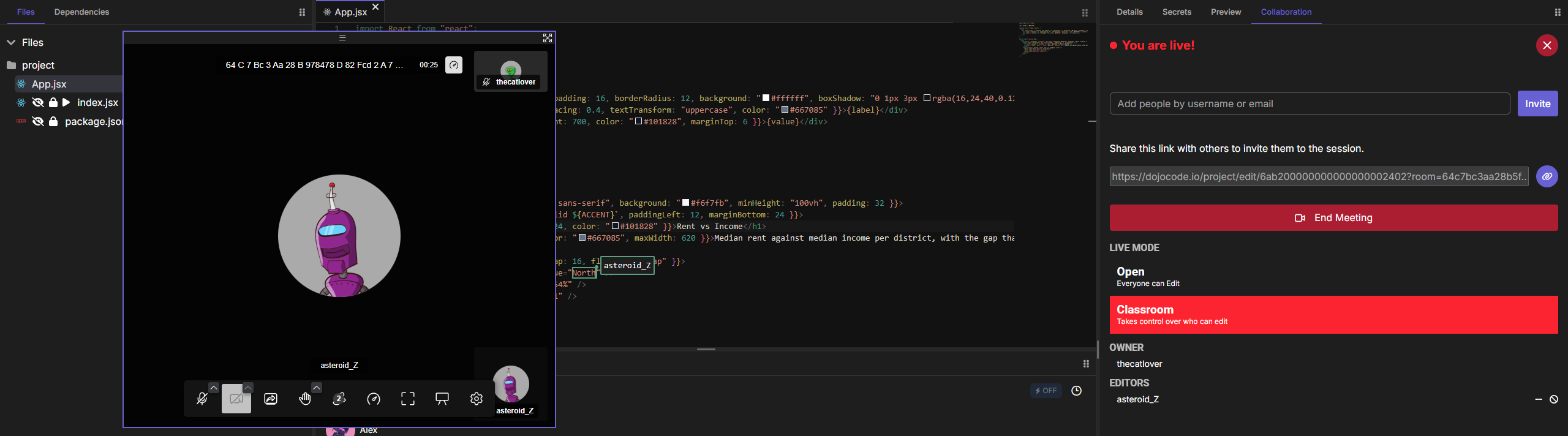
Fig. 8 - The video call runs in a floating window next to your code
Ending the session
When you're done, click the red ✕ next to You are live! and confirm with Stop live. Everyone is disconnected: participants get a message that the session has ended and are taken to the project's page.
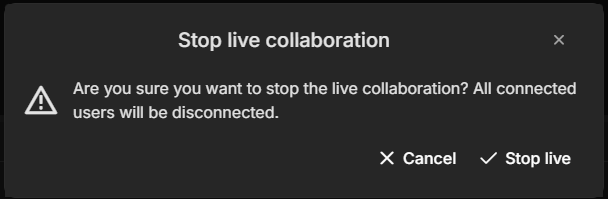
Fig. 9 - Stopping the session disconnects everyone
Participants can leave at any time with the ✕ next to You are in a live session - or simply by leaving the page, after a confirmation.
The session follows you
A live session follows the host. If you open another project or a challenge while you're live, the session moves there and your participants are taken along. The same live room works for challenges too - see Live collaboration.