
API Tester
The API Tester is a built-in HTTP client within DojoCode that lets you test API endpoints directly inside the challenge editor. It works similarly to tools like Postman or Insomnia, but runs entirely in the browser using WebContainers.
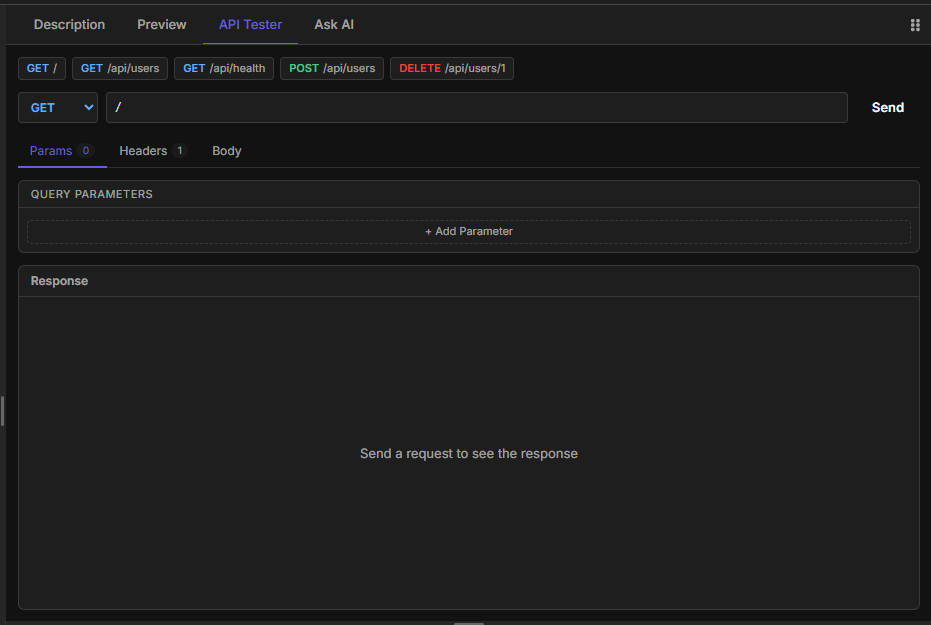
Fig. 1 - The API Tester panel with quick request buttons and request configuration
INFO
The API Tester is only available for Node.js-based challenges where your code runs an HTTP server. Challenge authors must enable it in the challenge settings.
Getting started
Before using the API Tester, make sure your Node.js server is running in the WebContainer. The Send button will be disabled until a server URL is detected.
- Open a Node.js challenge that has the API Tester enabled
- Write your code
- Click the API Tester tab (next to Description, Preview, and Chat)
- You're ready to start testing your endpoints
Quick request buttons
At the top of the API Tester, you'll find pre-configured shortcut buttons for common requests. Click any of these to instantly populate and send the request:
| Button | What it does |
|---|---|
| GET / | Sends a GET request to the root path |
| GET /api/users | Fetches the users endpoint |
| GET /api/health | Checks the health endpoint |
| POST /api/users | Creates a user with a sample JSON body |
| DELETE /api/users/1 | Deletes user with ID 1 |
Sending a GET request
Let's walk through a simple example. Say you have an Express.js server with a GET / route that returns an HTML page:
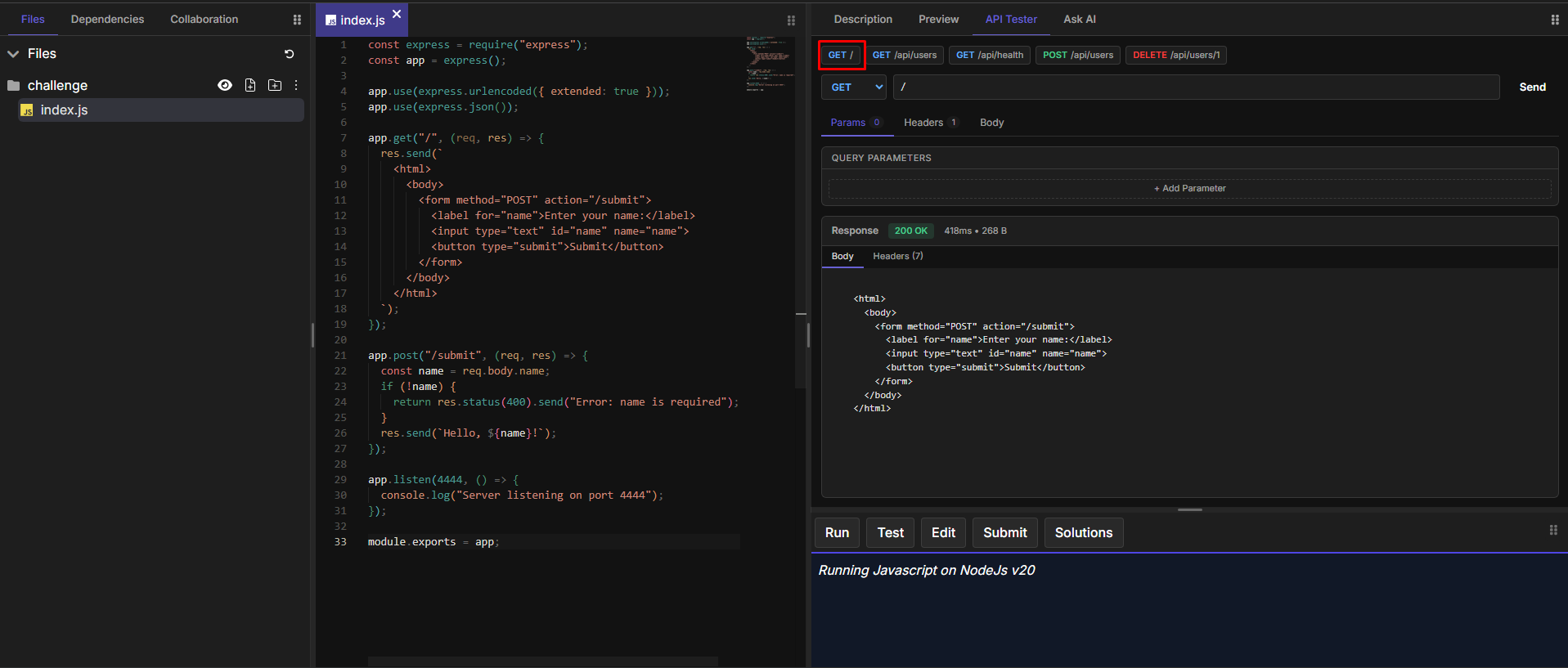
Fig. 2 - Sending a GET / request and receiving a 200 OK response with HTML content
Step 1 — Select GET from the HTTP method dropdown.
Step 2 — Type the endpoint path in the input field (e.g., /, /api/users, /api/products/5). You don't need the full URL, just the path. The base URL is automatically detected from your running server.
Step 3 — Click the Send button.
The Response section will display the result, including the status code (200 OK), response time (in milliseconds), and response size (in bytes).
Sending a POST request with a body
For requests that require a body (POST, PUT, PATCH), switch to the Body tab to write your JSON payload:
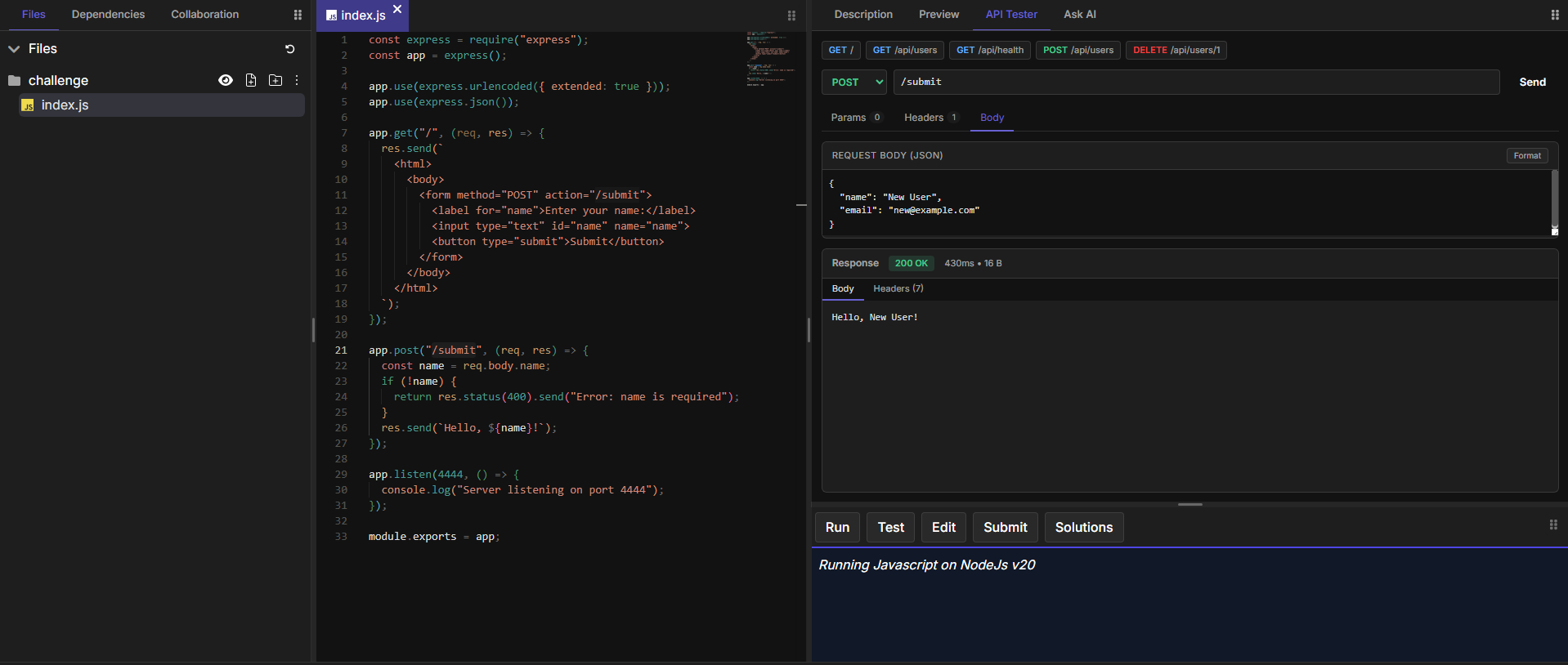
Fig. 3 - Sending a POST /submit request with a JSON body and receiving the response
Step 1 — Select POST from the method dropdown.
Step 2 — Enter the endpoint path (e.g., /submit).
Step 3 — Click the Body tab and write your JSON payload:
{
  "name": "New User",
  "email": "new@example.com"
}Step 4 — Click Send. The response will show the result from your server.
INFO
Use the Format button inside the Body editor to pretty-print and validate your JSON before sending.
Configuring headers
The Headers tab lets you add custom request headers. A default Content-Type: application/json header is included automatically. You can add additional headers like Authorization: Bearer <token> for authenticated endpoints.
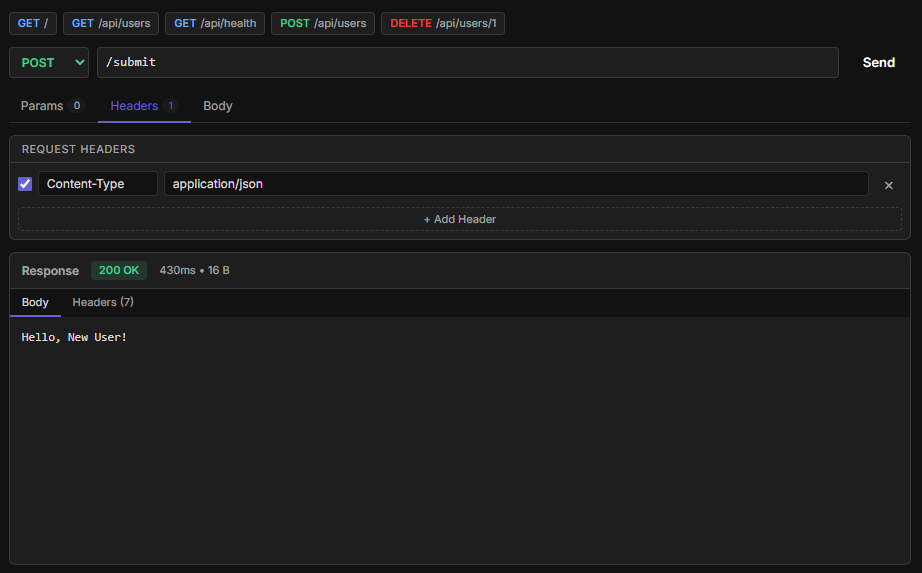
Fig. 4 - The Headers tab with the default Content-Type header and option to add more
Each header has a checkbox to quickly toggle it on or off without deleting it, and a remove button (x) to delete it entirely. Click + Add Header to add a new key-value pair.
Adding query parameters
The Params tab allows you to add query parameters as key-value pairs. Each parameter can be toggled on or off with a checkbox.
For example, adding page = 1 and limit = 10 will send the request to /api/users?page=1&limit=10.
Reading the response
After sending a request, the response section shows:
- Status Code — Color-coded badge:
- Green (200-299): Success
- Blue (300-399): Redirect
- Orange (400-499): Client error
- Red (500+): Server error
- Response Time — How long the request took (in milliseconds)
- Response Size — Size of the response body (in bytes or KB)
- Body tab — The response content. JSON responses are automatically pretty-printed. Non-JSON responses are shown as plain text
- Headers tab — All response headers returned by your server, displayed as key-value pairs
Example workflow
Here's a typical workflow for testing a REST API challenge:
- Write an Express.js or HTTP server with a
GET /api/usersendpoint - Click the API Tester tab
- Click the GET /api/users quick button (or type the path manually)
- Review the response — check the status code is 200 and the body contains your expected data
- Test edge cases: try POST with a body, DELETE a resource, send invalid data to test error handling
For challenge authors
To enable the API Tester for your challenge:
- Open your challenge in Edit mode
- Go to the Details Panel (challenge settings)
- Find the "Enable API tester" checkbox
- Check it and save
Once enabled, solvers will see the API Tester tab alongside the Preview and Console tabs.
Tips
- Server must be running — If the Send button is grayed out, your server hasn't started yet. Check the Console/Preview for errors
- JSON only for body — The body editor expects JSON format. Use the Format button to validate and pretty-print
- 15-second timeout — If your endpoint takes longer than 15 seconds, the request will time out. Optimize your code or check for infinite loops
- No auth built-in — If your API requires authentication, manually add an
Authorizationheader in the Headers tab - HTTP methods are color-coded — Each method (GET, POST, PUT, PATCH, DELETE) has a distinct color for quick identification