
Images & fonts
A real app needs more than source files: a favicon, a logo, a hero image, a custom font. Every DojoCode project and challenge can hold these binary assets right next to your code. They show up in the file tree, open in a viewer instead of the code editor, are served by the live preview, and travel with your work when you save, fork, export or publish it.
Supported files
| Category | Extensions | What the editor does |
|---|---|---|
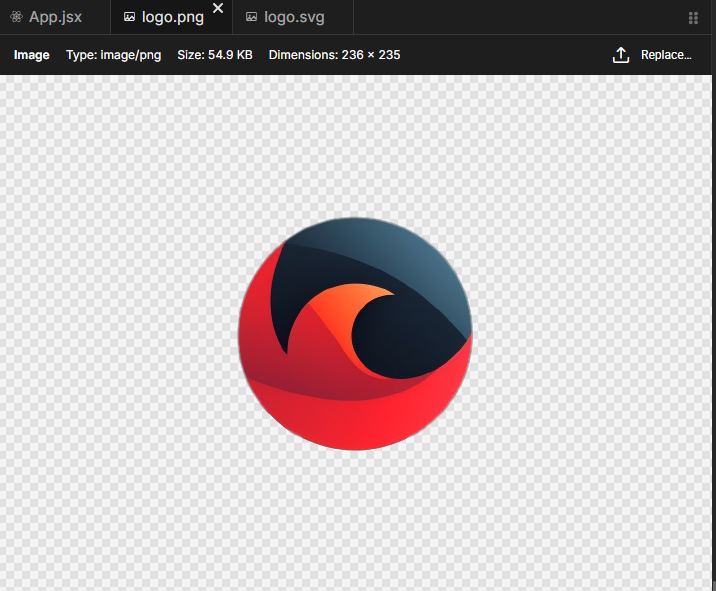
| Raster images | png, jpg, jpeg, gif, webp, ico | Opens an image viewer showing the type, size and dimensions. |
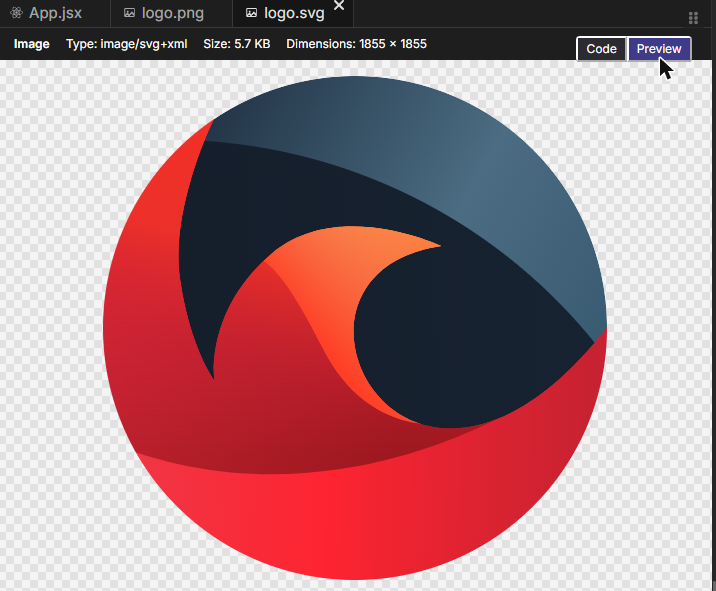
| Vector images | svg | Opens as text in the code editor, with a Code / Preview toggle to render it. |
| Web fonts | woff, woff2, ttf, otf | Opens a read-only info tab with the type and size. |
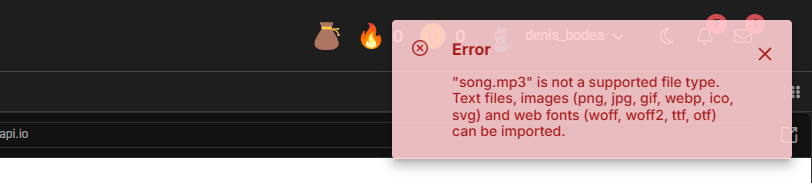
Anything else that is not a text file — audio, video, PDF, archives, executables — is refused with a clear message, so nothing ends up corrupted.
Limits
Each binary asset can be at most 1 MB. One file group can hold up to 10 MB of binary assets in total: a project's files, or each category of a challenge on its own (preloaded files, author solution, tests). Files over the limit are refused on import; nothing is written to the tree. All files of a group together, code and assets, must also stay under 15 MB to save.
Adding an asset
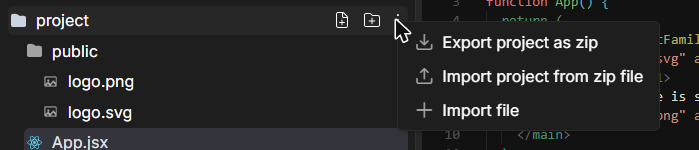
Open the ⋮ menu on the project root (or right-click any folder) and choose Import file. Pick the image or font from your computer, confirm the name, and it appears in the tree with its own icon. In a challenge the same menu sits on each file group, so you choose whether the asset belongs to the preloaded files, the author solution or the tests.
Trying to import an unsupported type shows an error and leaves your files untouched:
Assets are imported, not typed
You cannot create a .png or .woff2 with Create file — that would only make an empty text file with a misleading name, so the name dialog refuses image and font extensions. Use Import file instead. For the same reason, an imported asset cannot be renamed to a text extension.
Viewing and replacing
Click an image in the tree to open the viewer. It shows the MIME type, the file size and, for raster images, the pixel dimensions. Replace… lets you swap the content with another file of the same type without touching the name or the code that references it.
SVG files are text, so they open in the code editor like any other file. Use the Preview toggle in the top-right corner of the tab to render them:
Rename, move, delete and drag-and-drop work exactly as for code files. Fork, save, export as zip and import from zip preserve the bytes of every asset.
Using assets in web templates (Vite)
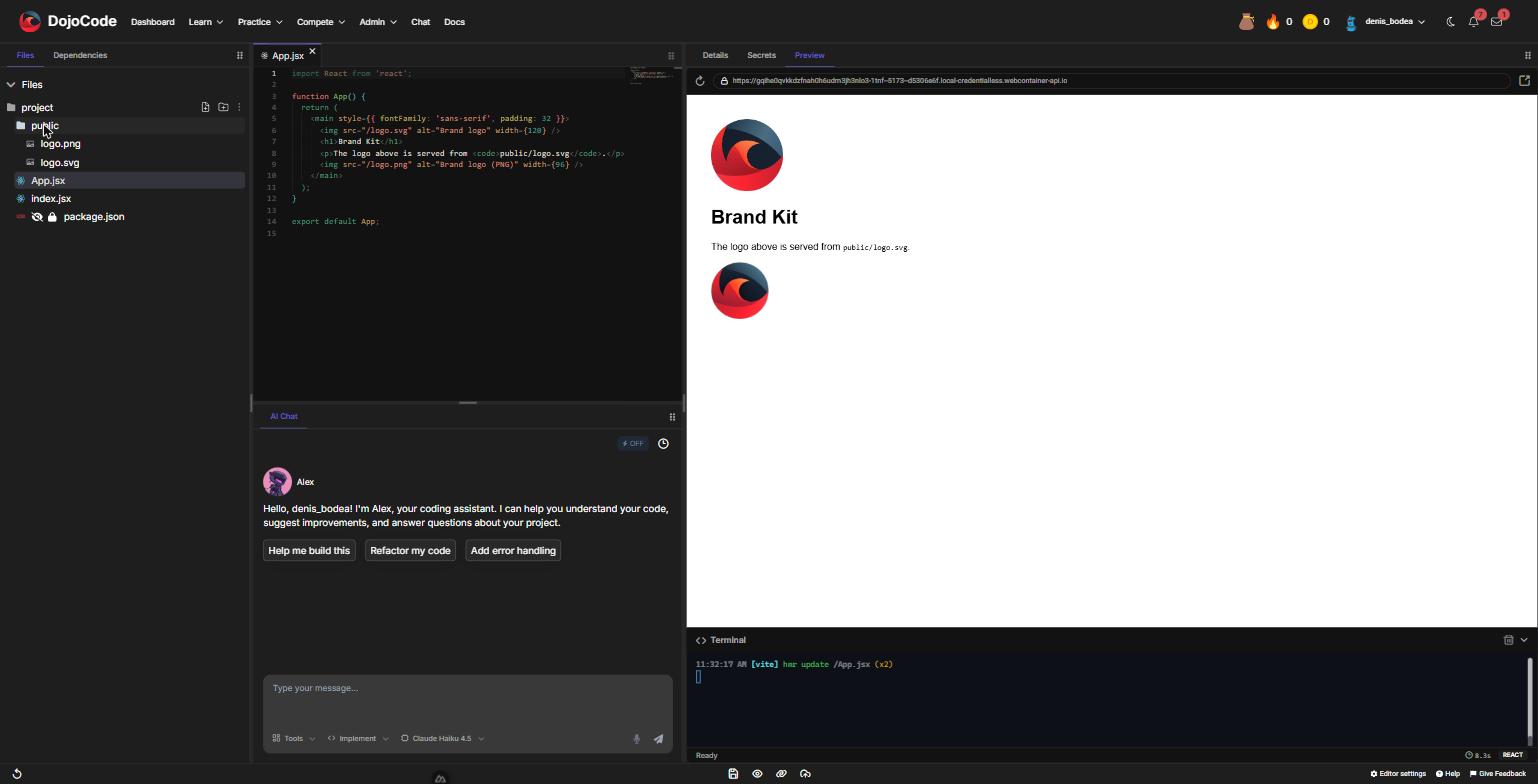
React, Vue, Svelte, vanilla and the other Vite-based templates serve your assets through the same dev server as your code. Put them in a public folder and reference them with a root-absolute path:
function App() {
  return (
    <main>
      <img src="/logo.svg" alt="Brand logo" width={120} />
      <h1>Brand Kit</h1>
      <img src="/logo.png" alt="Brand logo (PNG)" width={96} />
    </main>
  );
}public/logo.svg is served at /logo.svg. The live preview updates as soon as the file is imported:
Use public/ if you plan to publish
In the editor preview Vite also serves files from the project root, so <img src="/logo.png"> works even when logo.png sits next to App.jsx. A production build does not: Vite only copies the public/ folder to the published site, so a root-level asset returns a 404 once you publish. Keep images and fonts in public/ (or import them from your code, e.g. import logo from './logo.png') and both preview and the published site behave the same.
Ctrl+click (Cmd+click on macOS) on src="/logo.png", href="favicon.ico" or a CSS url(...) jumps to the asset just like it does for code files, opening it in the viewer.
Custom fonts
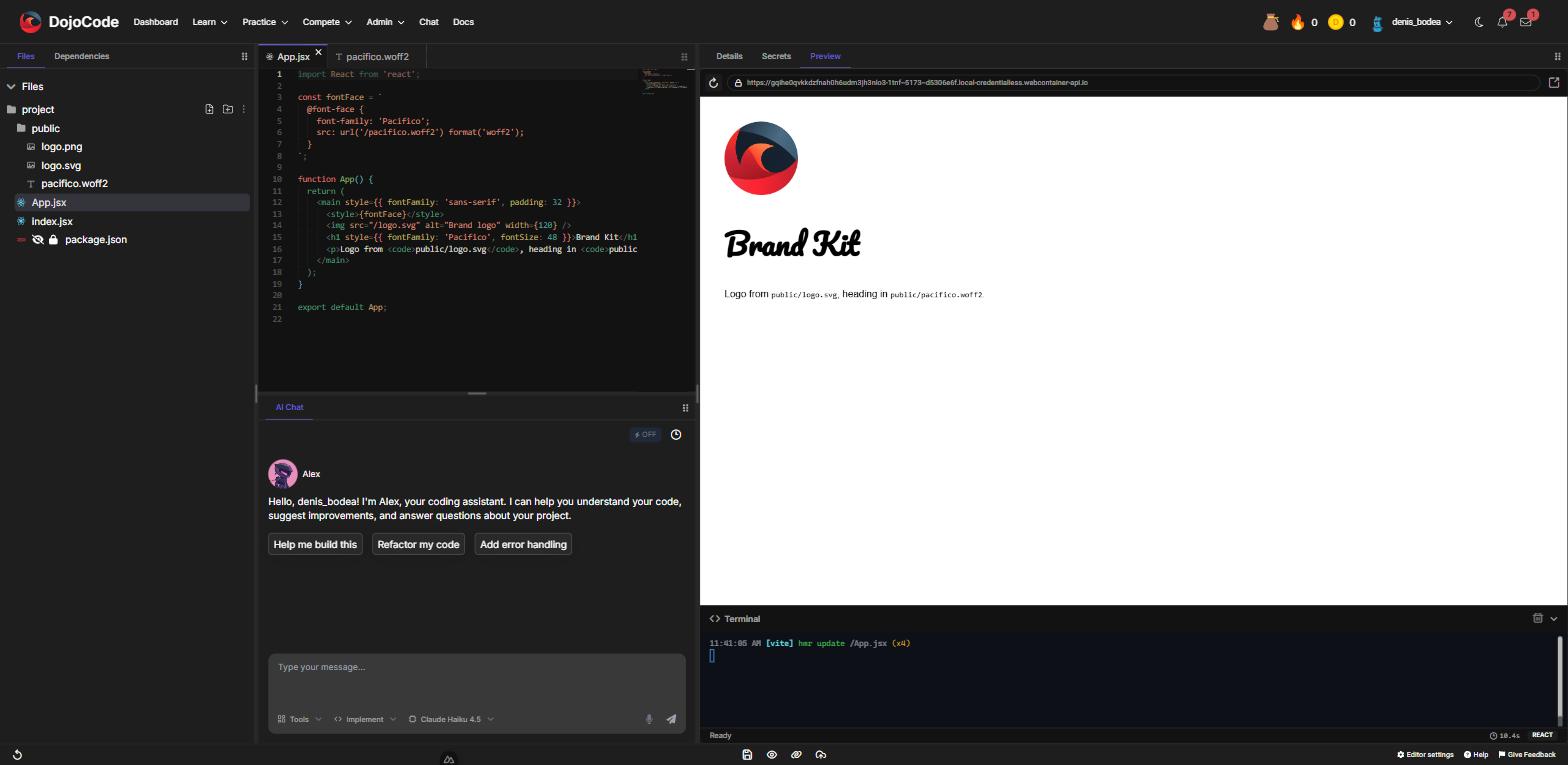
Web fonts work the same way: import the .woff2 (or .woff, .ttf, .otf) into public/ and declare it with @font-face:
const fontFace = `
  @font-face {
    font-family: 'Pacifico';
    src: url('/pacifico.woff2') format('woff2');
  }
`;

function App() {
  return (
    <main>
      <style>{fontFace}</style>
      <h1 style={{ fontFamily: 'Pacifico', fontSize: 48 }}>Brand Kit</h1>
    </main>
  );
}The font tab only shows the file details — there is no glyph preview — but the live preview renders it:
Declared before the file existed?
If your CSS referenced the font before you imported it, the browser remembers the failed request. Click the preview's reload button once and the font loads.
Assets in Python projects
Python projects keep their files in the project root and can read assets as bytes, both in the browser preview and when you press Run:
from pathlib import Path

logo = Path('logo.png').read_bytes()
print(f'logo.png: {len(logo)} bytes, PNG signature: {logo[:4]}')To show an image, enable the web preview from the Details tab:

Then add an index.html that references the file — the preview serves every project file, images included:
<h1>Pixel Lab</h1>
<img src="logo.png" alt="Logo" width="160">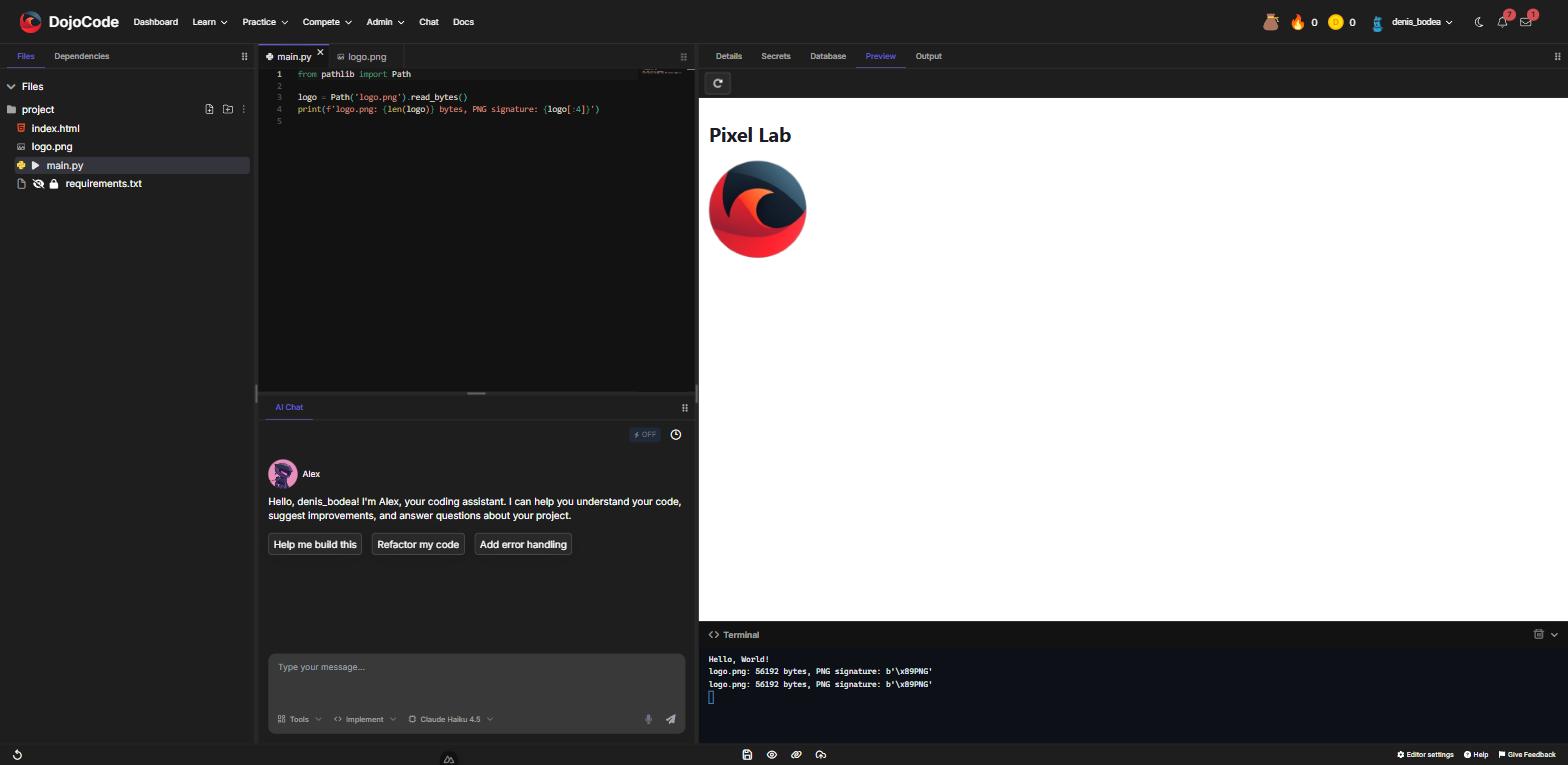
The same works with pygame.image.load('logo.png') for games and plt.imread('logo.png') for matplotlib figures.
Assets in challenges
Challenges take the same files, in any of their groups:
- Preloaded files — what the learner starts with. A logo, a sprite sheet or a font here reaches everyone who solves the challenge, and it shows up in the solver's file tree and preview.
- Author solution files — assets your reference solution needs.
- Initial tests and all tests — fixtures your tests read.
When the challenge runs, every asset is written to disk exactly as you uploaded it, so tests can read it like any other file. In a PHP challenge, for example:
$bytes = file_get_contents(__DIR__ . '/logo.png');

$this->assertSame(56192, strlen($bytes));
$this->assertSame('89504e470d0a1a0a', bin2hex(substr($bytes, 0, 8)));The same holds for Python, Node, Java, Go and the rest: open('logo.png', 'rb'), fs.readFileSync('logo.png') and their equivalents get the original bytes, not text. Browser templates such as React or Vue serve the asset from the preview, so a solver sees the image in the running app.
Learners open assets the same way you do — in the viewer, never in the code editor — and an asset a learner keeps in their files travels with the solution they submit.
Publishing
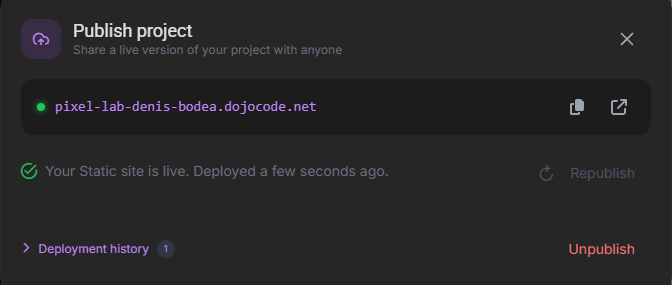
Publishing needs no extra step: the build decodes every asset and ships it with the site. For Vite templates that means the public/ folder (see the note above); for Python the runtime bundles the files, images included, and serves them on the published page.
Good to know
- Binary content is stored with your files, so it counts towards the 10 MB budget and travels with forks and zip exports.
- The AI assistant sees assets in the file tree and can reference them by path, but it cannot read or edit their contents.