
AI Assistance
DojoCode includes a built-in AI companion available directly in the editor via the Chat tab — both when you solve a challenge and when you work on a project. It helps you learn, get unstuck, and — when you're ready — write code. The assistant supports two modes: Understand and Implement.
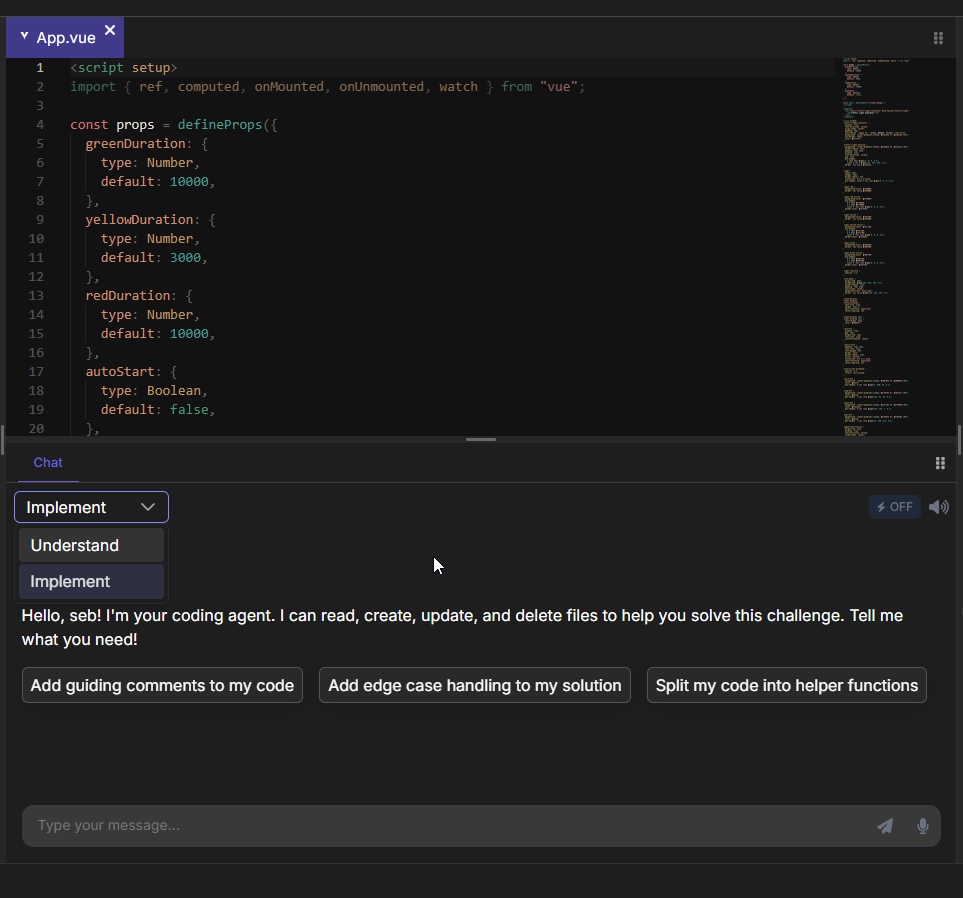
Fig. 1 - The Chat panel
Getting started
To open the AI assistant, click the Chat tab in the action area (next to Description, Preview, and API Tester). The chat panel will appear, ready for your questions or instructions.
Understand mode
Understand mode is your learning companion. It helps you grasp new coding concepts, gives you hints for the current challenge, and explains why your tests might be failing — all without writing code for you.
What you can do
- Ask for hints about the challenge approach
- Get explanations of coding concepts, data structures, or algorithms
- Understand why your tests are failing (ties into the AI Test Explanations feature)
- Ask about language-specific syntax or patterns
Example prompts
- "Give me a hint"
- "Explain the challenge to me"
- "Why is my test failing?"
- "What data structure should I use for this?"
Implement mode
Implement mode is the agent mode. The AI can read your existing code and write directly in the editor. You provide the instructions — think of it as prompt engineering — and the AI handles the implementation.
What you can do
- Ask the AI to write or modify code in your editor
- Request implementations of specific functions or components
- Get refactoring suggestions applied directly
- Fix bugs based on your description
Example prompts
- "Refactor my code to use a more efficient algorithm"
- "Add error handling to my function"
- "Fix the bug in my implementation"
WARNING
AI Assistance usage affects your challenge score. Each AI prompt reduces your score, and the penalty scales with the challenge difficulty — 10% per prompt on Beginner, 5% on Intermediate, and 3% on Expert. Try solving challenges on your own first for the best score. See how scoring works.
Contests
In contests where AI Assistance is enabled, prompts are free for all participants — up to the per-challenge prompt limit set by the contest author. No tokens are deducted, so enjoy!
Switching between modes
You can switch between Understand and Implement at any time from the mode selector in the Chat panel.
Choosing a model
Next to the mode selector is a model picker. The standard models answer most questions well and are what the assistant uses by default. The more capable ones are built for complex, multi-step work — refactors that span several files, a whole project scaffold, a stubborn bug — and they spend your AI tokens faster.
| Model | Tokens per prompt |
|---|---|
| Claude Haiku 4.5 | 1 |
| GPT 4.1 Mini | 1 |
| Claude Sonnet 5 | 3 |
| GPT 5.6 Luna | 3 |
You can switch at any time, and your choice is remembered between sessions. Your remaining balance is in Settings → Usage, which lists these costs too.
TIP
Start on a standard model. Switch to a capable one when the task is genuinely involved — that way the extra tokens go where they make a difference.
Long conversations
The AI has a limited context window, but you don't have to manage it — DojoCode tracks usage with a small ring next to the chat input and automatically summarizes older messages when the conversation gets long. You can also trigger it yourself with the /compact command. See AI Context Management for how it works.
Voice commands
You can interact with the AI assistant hands-free using voice commands:
- Click the microphone icon to start speaking
- The AI will process your speech and respond accordingly
- Make sure your microphone is enabled and functioning
Keyboard shortcuts
| Shortcut | Action |
|---|---|
| Ctrl + Alt + V | Toggle between voice and text mode |
| Ctrl + M | Enable/toggle microphone |
| Esc | Interrupt the assistant, or double-tap to clear the input (see below) |
See all keyboard shortcuts.
How Esc behaves in the chat input
Esc follows a priority chain — it always checks for active work first before touching your input text:
- The assistant is generating a response or running a tool — the first Esc immediately interrupts the operation. Any text you've already typed in the input is preserved, so you can tweak the prompt and resend without retyping.
- Nothing is running and the input has text — the first Esc does nothing visible (a safety guard so you don't wipe a prompt by accident). A second Esc pressed shortly after clears the input.
- Nothing is running and the input is empty — Esc does nothing.
The double-tap window is short (about 500ms). If you wait longer than that between presses, the counter resets and you'll need two fresh presses to clear the input.
After interrupting active work, you can start typing again immediately, or press Esc again to clear anything still in the input.
Tips
- Start with Understand mode to learn the concept before jumping to Implement — you'll learn more
- Be specific in your prompts for better AI responses
- Use Understand mode to ask about failing tests before asking the AI to fix them
- Fewer AI prompts = higher challenge score