
ChatGPT (Web)
Prerequisites
- A ChatGPT account (Plus, Team, or Enterprise)
- A DojoCode account
Configuration
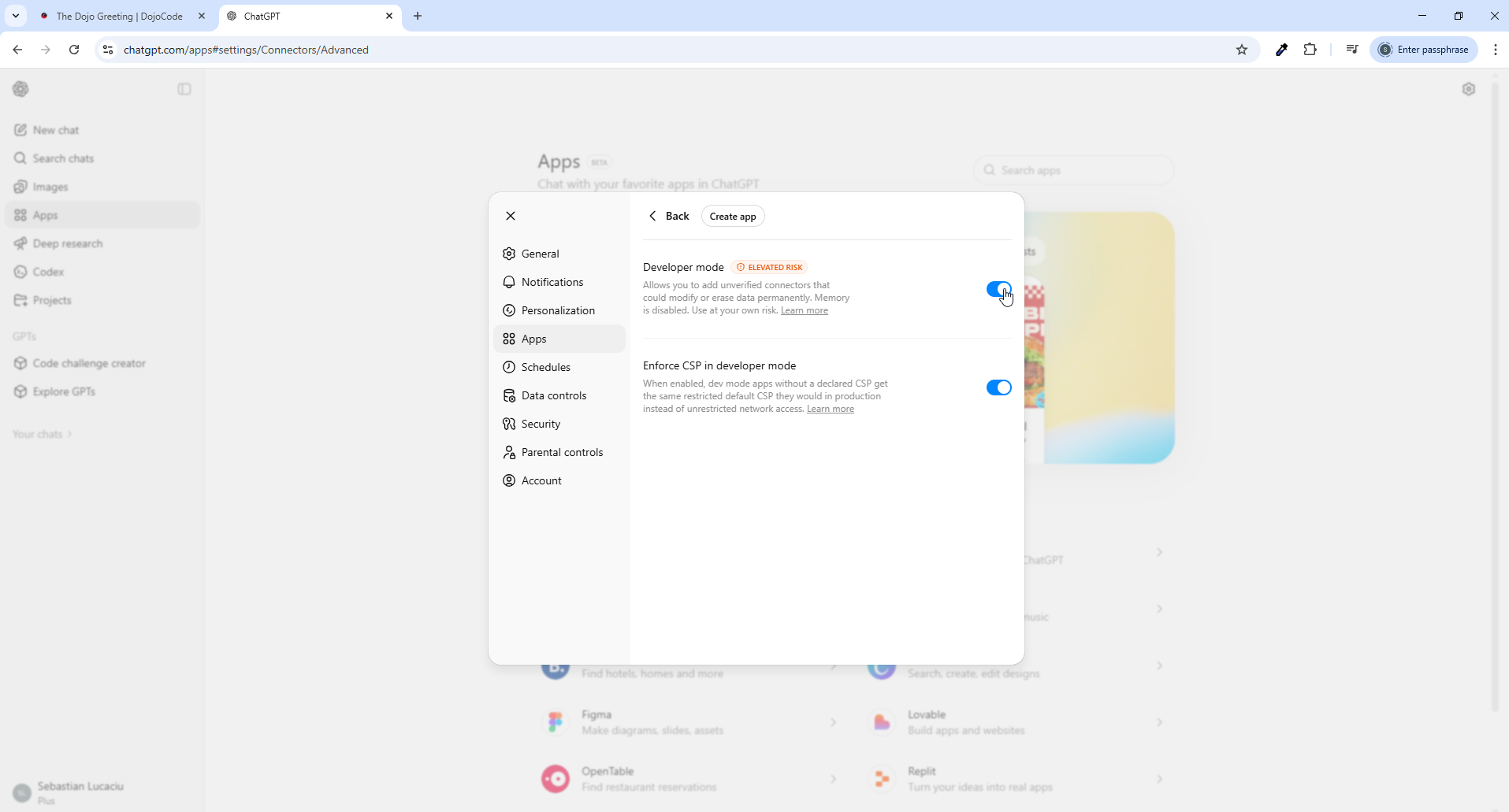
Enable Developer Mode
ChatGPT requires Developer mode to be enabled before you can add MCP Apps.
- Open ChatGPT in your browser
- Go to Settings → Apps (under the Advanced section)
- Toggle Developer mode on
Add DojoCode App
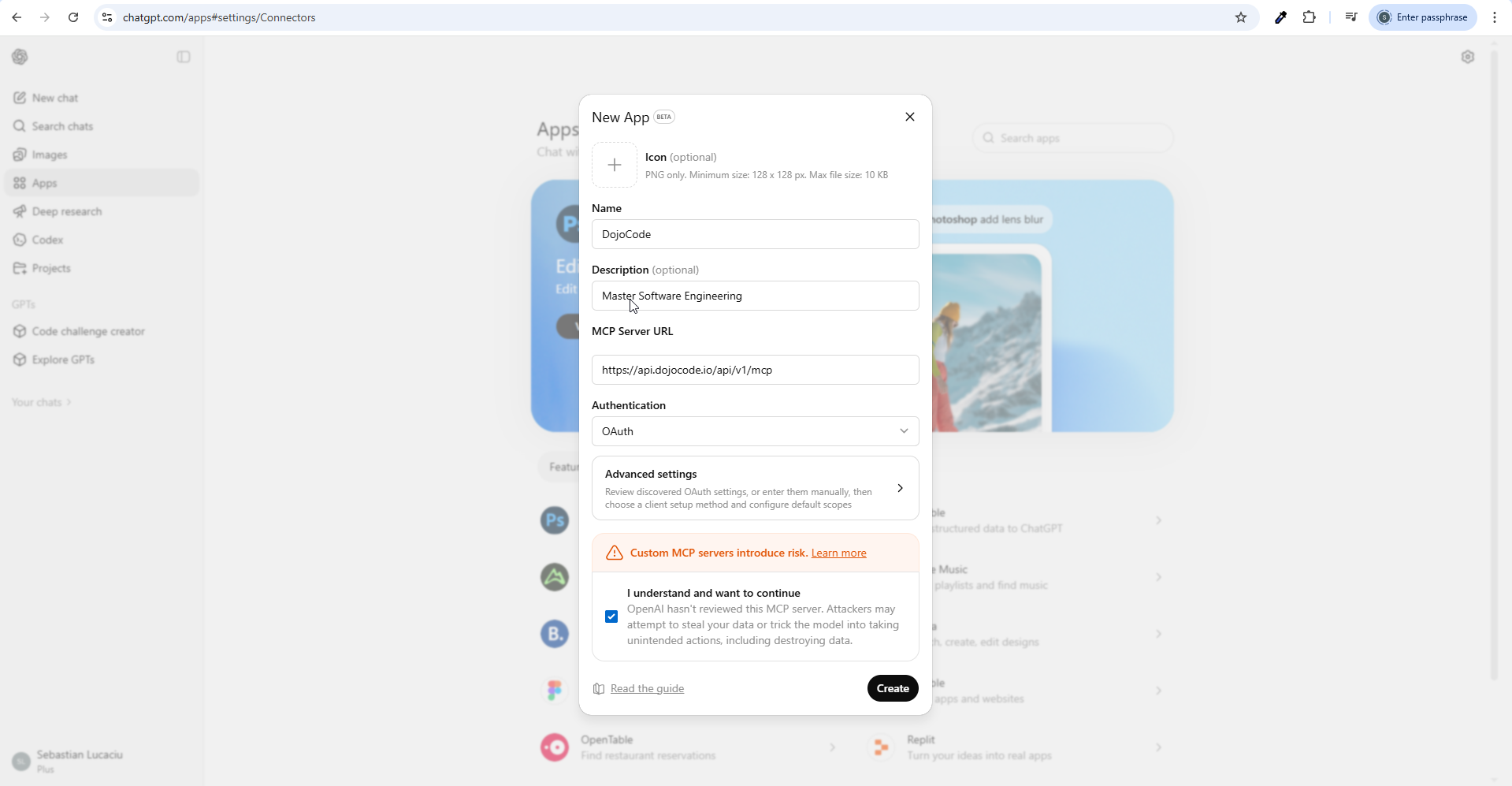
Once Developer mode is enabled, you can add DojoCode as a new App:
- Click Create app in the Apps settings page
- Fill in the following details:
- Name:
DojoCode - Description:
Coding Software Engineering(or any description you prefer) - MCP Server URL:
https://api.dojocode.io/api/v1/mcp
- Name:
- Check the I understand and want to continue checkbox
- Click Create
Authentication
- After adding the server, ChatGPT will prompt you to authorize
- A browser window opens to the DojoCode authorization page
- Log in to DojoCode if you are not already logged in (you can use email/password, Google, or GitHub)
- Click Approve to grant access
- You are redirected back to ChatGPT — the connection is now active
Interactive Embedded Views
ChatGPT supports MCP Apps, which means DojoCode can open interactive views directly in the chat. When you ask ChatGPT to open a challenge, project, or learning path, it renders the DojoCode page in an embedded viewer within the conversation.
You can:
- Solve challenges directly in the chat
- Edit challenges and projects in an embedded editor
- Browse learning paths with full interactivity
Note
Creating new challenges requires local tools (file system access) and is only available with IDE integrations like VS Code, Cursor, or Claude Code. The web version is best suited for browsing, solving, editing, and previewing existing content.
Usage Examples
Browse challenges:
Find me beginner Python challenges about algorithmsOpen a challenge to solve:
Open challenge [challenge-id] so I can solve itEdit a challenge:
Open challenge [challenge-id] in the editorOpen a project:
Show me my projects and open the first oneBrowse learning paths:
Find learning paths about JavaScript fundamentalsTroubleshooting
Connection fails
- Ensure you have a ChatGPT Plus, Team, or Enterprise account (MCP requires a paid plan)
- Ensure Developer mode is enabled in Settings → Apps
- Verify the MCP server URL is correct:
https://api.dojocode.io/api/v1/mcp - Try removing and re-adding the MCP server
Authorization expired
- The access token is valid for 90 days
- If you see authentication errors, remove the DojoCode connector and add it again to trigger re-authorization
Embedded views not loading
- Ensure you are connected to the internet
- Try refreshing the ChatGPT page
- If the view shows a loading spinner, wait a few seconds — the DojoCode page may take a moment to load