
Shared Content & Collaboration
Everything your team builds on DojoCode lives inside the active organization and is shared by all of its managers. When an organization is your active workspace, the challenges, projects, learning paths, contests, and assignments you create belong to that organization — and the owner together with every admin can see and work with all of it. No more content siloed to a single instructor's account. 🥋
The rule of thumb
Create while an organization is active → it belongs to that organization → every manager (owner + admins) can access it.
One Place for Everything You Build
An organization is the shared home for all of your business content:
- Challenges — coding tasks you author or curate for your members. See Challenge Curation and Private Challenges.
- Projects — flexible multi-file workspaces for training, labs, and assessments. See Projects.
- Learning paths — ordered sequences of challenges and lessons that guide members through a curriculum. Authoring is covered in the dedicated Learning Paths guide.
- Contests — timed competitions run for your members. See Contests and Contest Curation.
- Assignments — challenges or learning paths handed out to groups or individual students, with due dates and progress tracking. The full lifecycle is covered in the dedicated Assignment Curation guide.
All of these are organization-scoped: they are attached to the organization that was active when you created them.
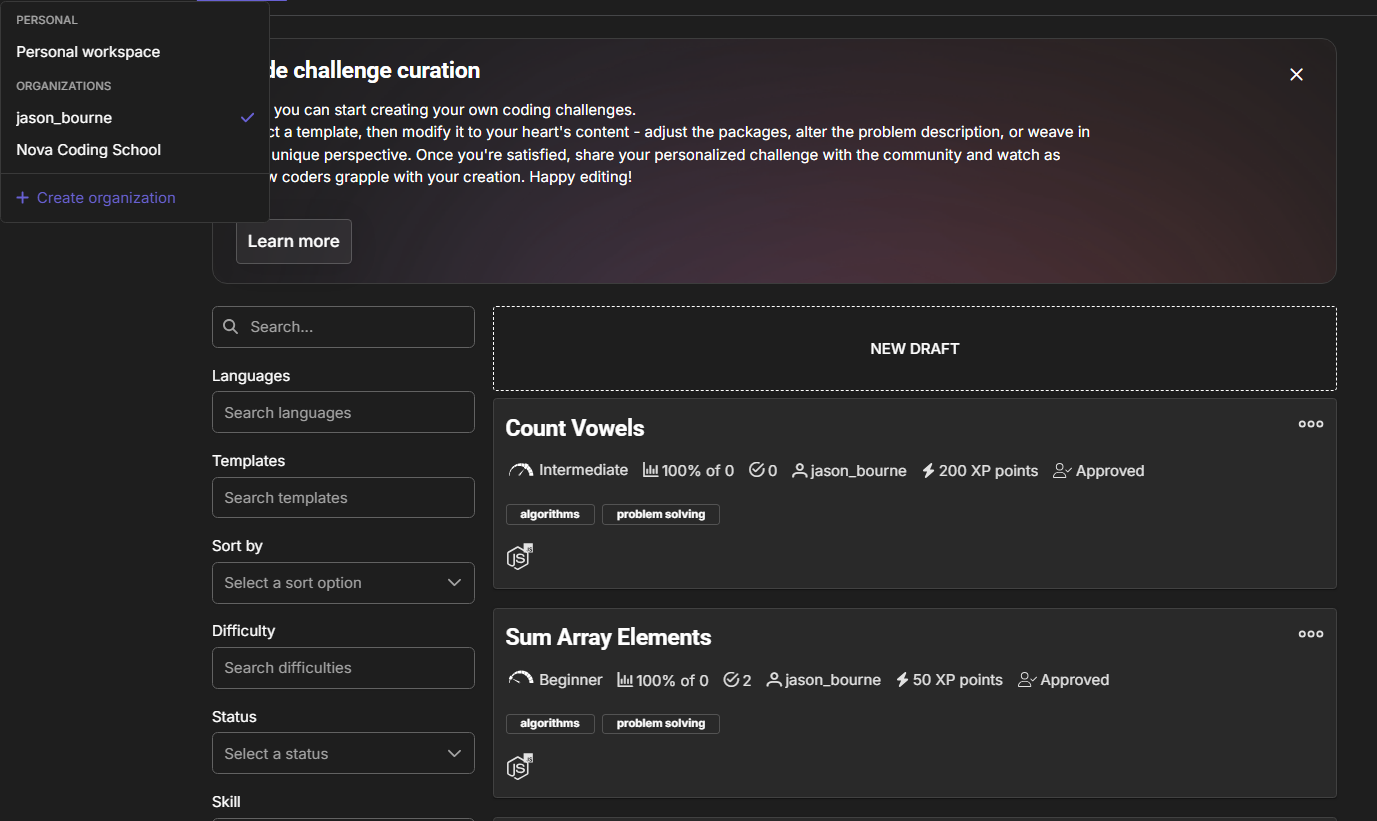
Switch the active workspace and the library changes with it — here the same view while the Nova Coding School organization is active shows that organization's own separate content:
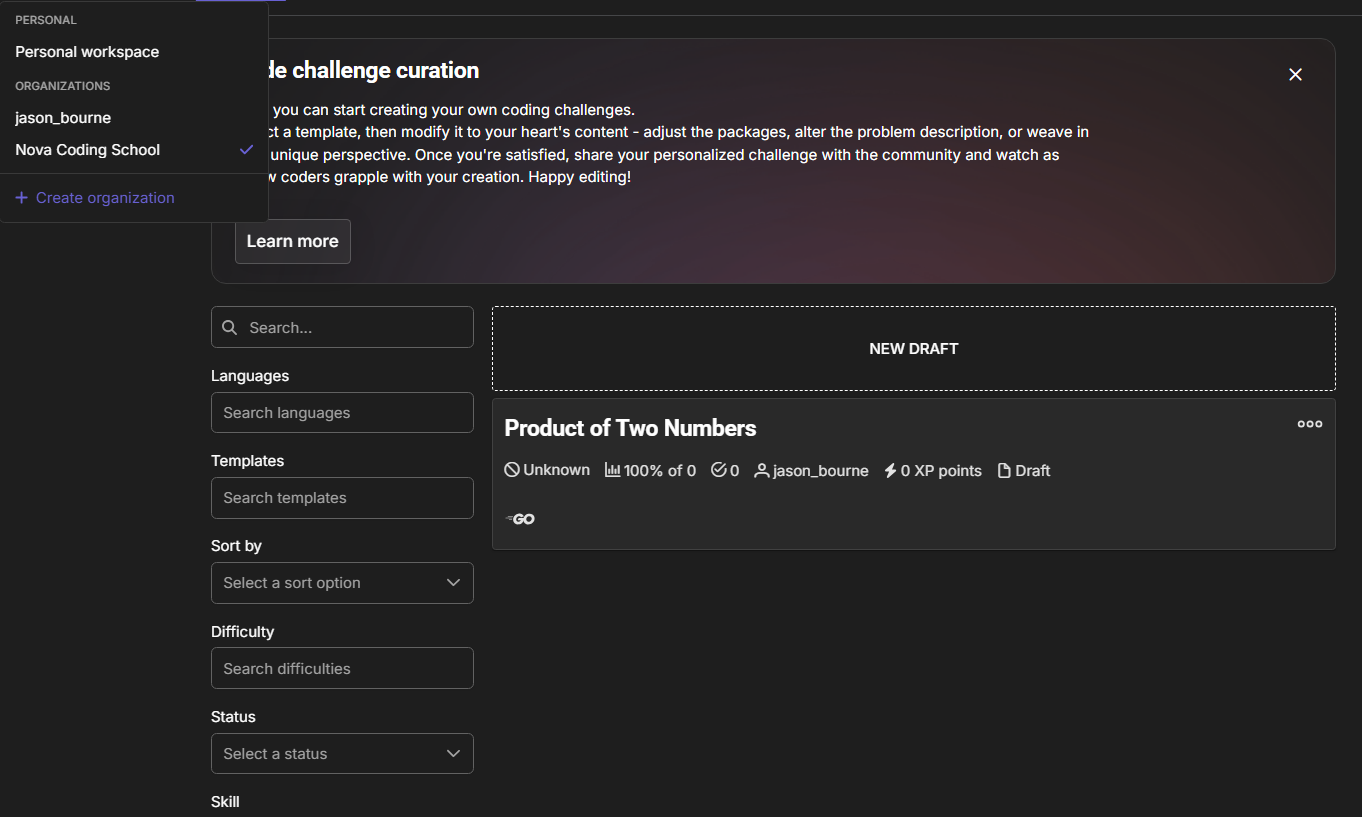
Creating Content Under the Organization
There is no separate "assign to organization" step — attachment happens automatically based on your active workspace:
- Make sure the right organization is selected as your active workspace. See Switching Workspaces.
- Create the resource — a challenge, project, learning path, contest, or assignment — the way you normally would.
- DojoCode stamps the new resource with the active organization. It immediately becomes part of that organization's shared library.
If you create the same resource while your personal workspace is active, it stays personal and is not shared with any organization. This is why confirming your active workspace before authoring matters.
"Select an organization workspace"
Creating a contest or assignment, and managing groups or students, requires an organization to be active. If you're prompted to select an organization workspace, open the workspace switcher, choose the organization, and retry.
Shared Access for Owner and Admins
Inside an organization, the owner and all admins share one view of the content:
- Everyone sees everything. Any manager can browse the organization's full library of challenges, projects, learning paths, contests, and assignments — not only the items they personally created.
- Everyone can collaborate. Managers can work with the organization's groups, students, and content together, so teaching or assessment isn't blocked when one instructor is away.
- New admins are instantly up to speed. When you add a new admin, they immediately see the organization's existing content, groups, and students — nothing needs to be re-shared or transferred.
Members (students) do not get this authoring view. They interact with content through the assignments, contests, and groups they're part of. For the exact split, see Roles & Permissions.
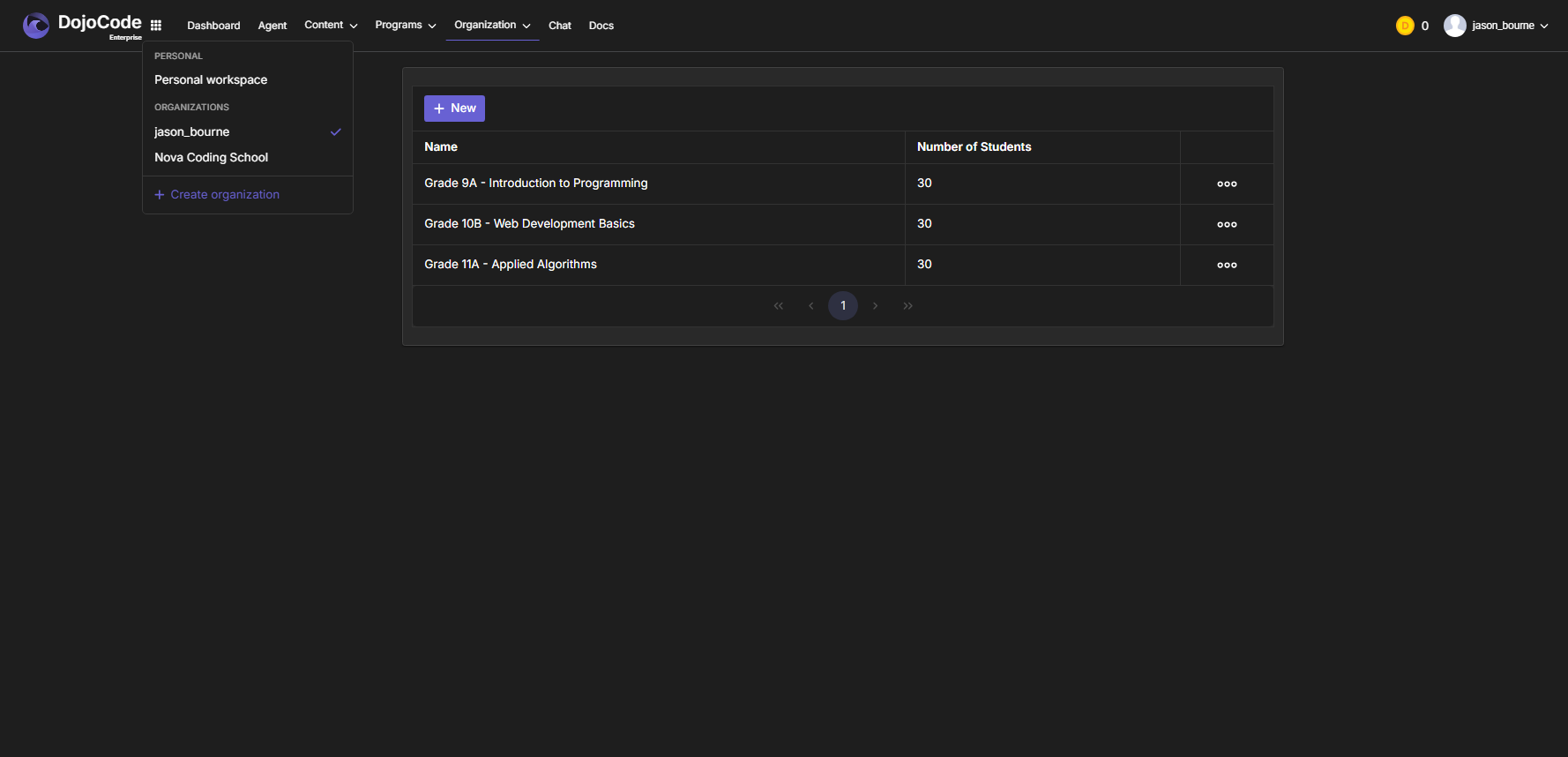
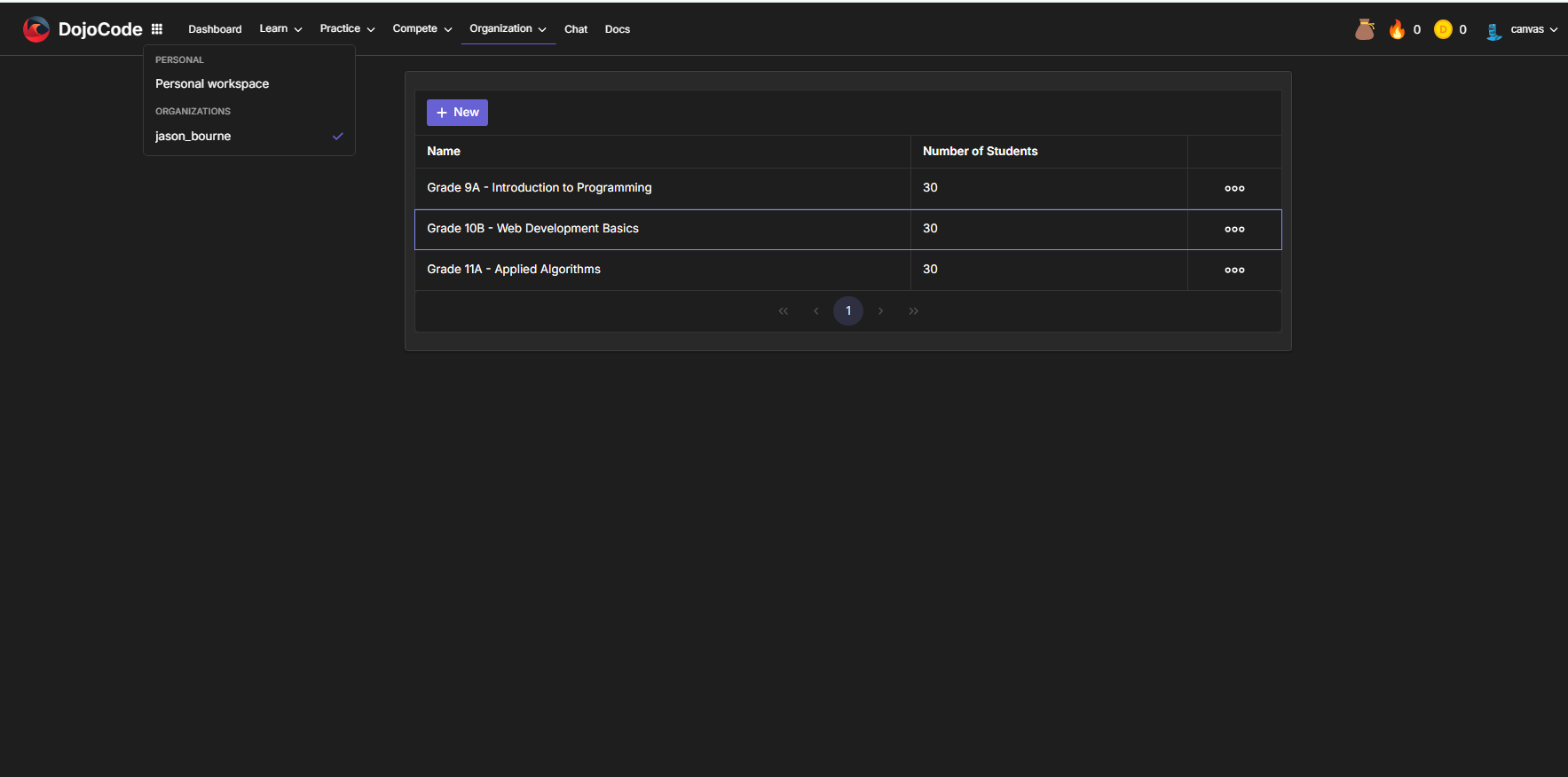
The owner and admins see the same organization data. Here the owner (jason_bourne) views the organization's Groups page:
…and an admin (canvas) sees the exact same groups in the same organization:
Assignments and Groups
Assignments are how organization content reaches your members — you hand a challenge or a learning path to a group or to individual students. The point to remember here is the organization angle: because both the content and the groups belong to the organization, any manager can create assignments and review the resulting progress, not just the person who set them up.
Creating, publishing, extending, and analyzing assignments is documented end-to-end in the dedicated Assignment Curation guide — this page doesn't repeat it. To organize who receives work, see Managing Groups and Inviting Students.
Related Pages
- Switching Workspaces — make sure content lands in the right organization.
- Roles & Permissions — who can author and manage what.
- Organizations & LTI — how content and assignments flow when launched from an LMS.