
Organizations Overview
An organization is your team's shared workspace on DojoCode. It is the home for everything your business does on the platform: your members (instructors and students), the content you author (challenges, projects, learning paths, contests), your student groups, and the assignments you hand out. Everything is grouped under a single organization so your whole team works from the same place — and against the same plan. 🥋
If you have used DojoCode Business before, think of the organization as the container that now sits above your groups and students: instead of each instructor seeing only what they personally created, everyone in the organization shares one consistent view.
The Workspace Model
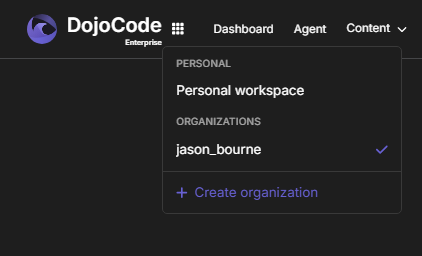
Every account on DojoCode has a personal workspace and can also belong to one or more organization workspaces. At any moment, exactly one workspace is active — this is your selected organization.
The active workspace decides the scope of what you see and create:
- When an organization is active, the challenges, projects, learning paths, contests, groups, students, and assignments you view or create belong to that organization, and new resources are automatically stamped with it.
- When your personal workspace is active, you work with your own individual content, outside of any organization.
Because a user can belong to several organizations (for example, an instructor who teaches for two different schools), switching the active workspace is how you move between them. See Switching Workspaces for details.
Roles at a Glance
Membership in an organization always carries a role that controls what you can do:
| Role | Who it's for | Can do |
|---|---|---|
| Owner | The Business account that created the organization and holds the subscription | Everything, including billing and creating admin accounts |
| Admin | Instructors / co-managers who help run the organization | Manage groups, students, content, contests, and assignments |
| Member | Students / learners | Join groups, receive and solve assignments, take part in contests |
Owners and admins together are the organization's managers. For the full breakdown, see Roles & Permissions.
What Lives Inside an Organization
Once an organization is active, these resources belong to it and are shared across all of its managers:
- Members — the instructors and students that belong to the organization.
- Student groups — cohorts of students used to organize and assign work. See Managing Groups.
- Content — challenges, projects, and learning paths authored for the organization.
- Contests — timed competitions run for the organization's members. See Contests.
- Assignments — challenges or learning paths handed to groups or individual students.
Because these resources are org-scoped, any manager can see and work with all of them — not only the items they personally created. An instructor who joins later immediately sees the organization's existing groups, students, and content. For how authoring ties to the active workspace and how managers share one library, see Shared Content.
Plans and Seats
An organization's access and limits (such as how many students you can add) come from the owner's subscription. The resolved plan — for example Free Trial, Regular, or Pro — is attached to the organization, so every manager operates under the same plan without needing their own subscription.
This means an admin does not need to buy a separate subscription: their ability to manage the organization is funded by the owner's plan.
Getting Started
- Create your organization. A Business account can create an organization and automatically becomes its owner. (Only Business accounts can create organizations.)
- Add your team. As the owner, create your co-instructors as admins, and bring in students by inviting them to a group. See Managing Members.
- Select the workspace. Make sure the organization is your active workspace before creating content. See Switching Workspaces.
- Build and assign. Create groups, author or curate content, launch contests, and hand out assignments — all within the organization.
Using an LMS?
When learners and teachers launch DojoCode from Moodle or Canvas through LTI, they are automatically enrolled into the correct organization — teachers as admins and learners as members — with that organization set as their active workspace. See Organizations & LTI.