
Switching Workspaces
DojoCode always works inside one active workspace at a time. Your active workspace — also called your selected organization — decides which organization's content, groups, students, contests, and assignments you see, and which organization new resources are created in. Getting comfortable with switching workspaces is the key to working in the right place. 🎯
Personal vs. Organization Workspaces
- Personal workspace — your own individual space, outside of any organization. Content you create here is yours alone.
- Organization workspace — a shared space for one of the organizations you belong to. Content, groups, and students here belong to that organization and are visible to all of its managers.
You can belong to several organizations at once (plus your personal workspace). Only one is active at a time; switching is instant.
What the Active Workspace Affects
When an organization is active, it scopes everything you do:
- Content — the challenges, projects, and learning paths you browse and author.
- Groups & students — the cohorts and learners you can see and manage.
- Contests — the competitions you view, create, and run.
- Assignments — the work you hand out, and the progress you track.
Any resource you create while an organization is active is automatically attached to that organization. Switch to a different workspace and you'll see a different set of content and students — each organization is fully separate.
One shared view per organization
Inside an organization, all managers (owner + admins) share the same view. When you switch into an organization, you see its groups, students, and content — including everything your co-instructors created, not just your own items.
How to Switch
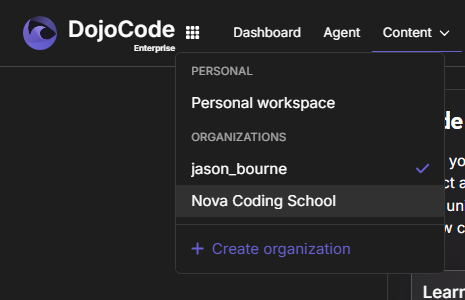
- Open the workspace switcher (in the top navigation / header).
- Choose the organization you want to work in — or choose your personal workspace to step out of all organizations.
- The interface reloads into that workspace; content, groups, and students now reflect your selection.
Your choice is remembered, so DojoCode keeps you in the same workspace across pages and sessions until you switch again.
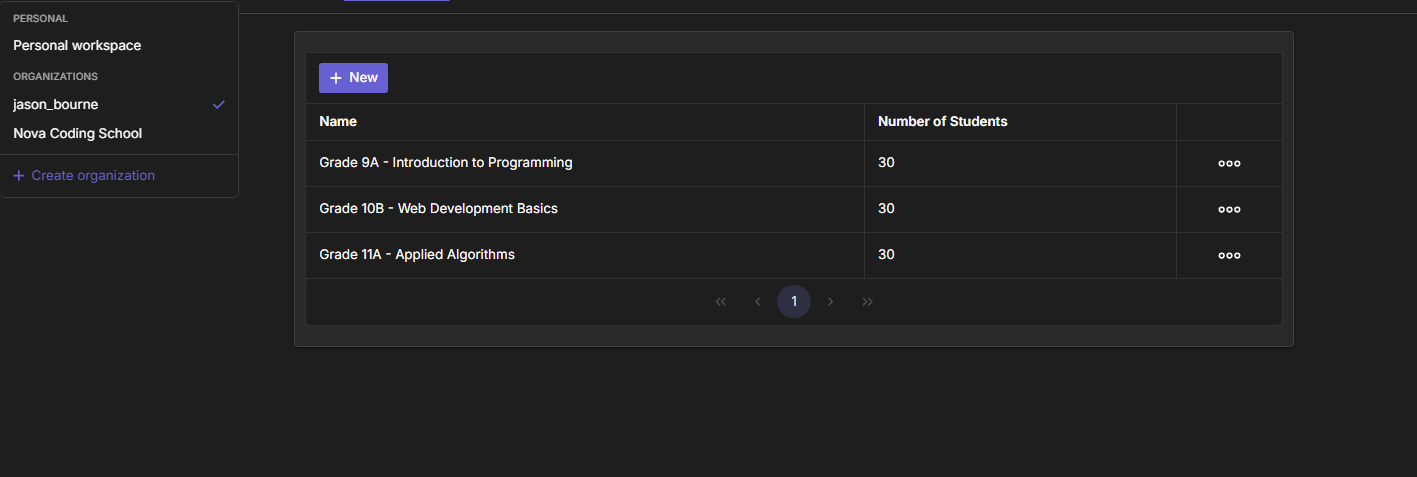
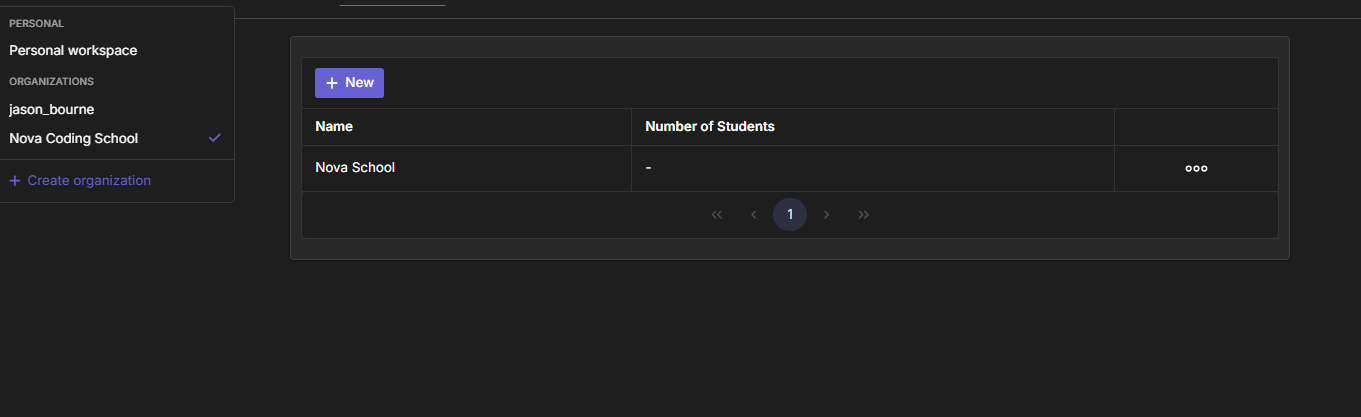
The same account sees an entirely different roster depending on which organization is active. Compare the Groups page across two organizations — jason_bourne (three groups) versus Nova Coding School (one group):
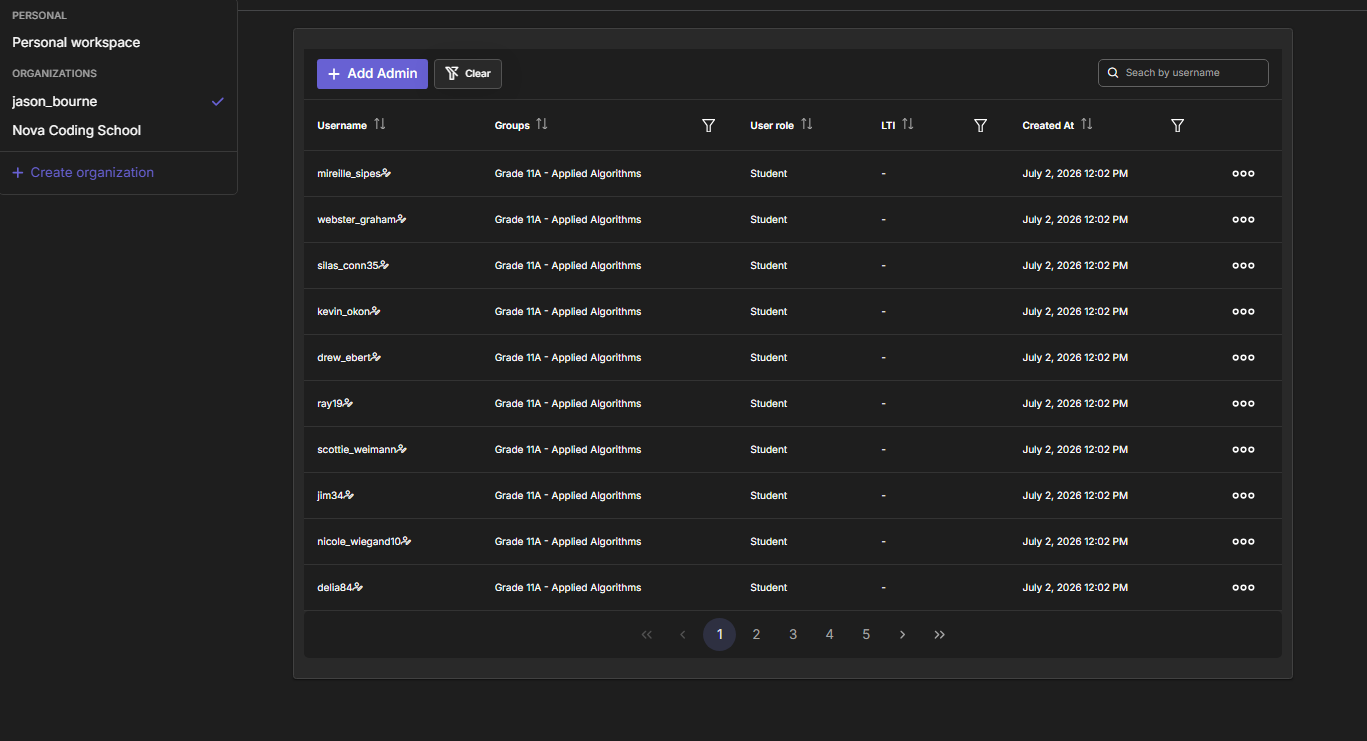
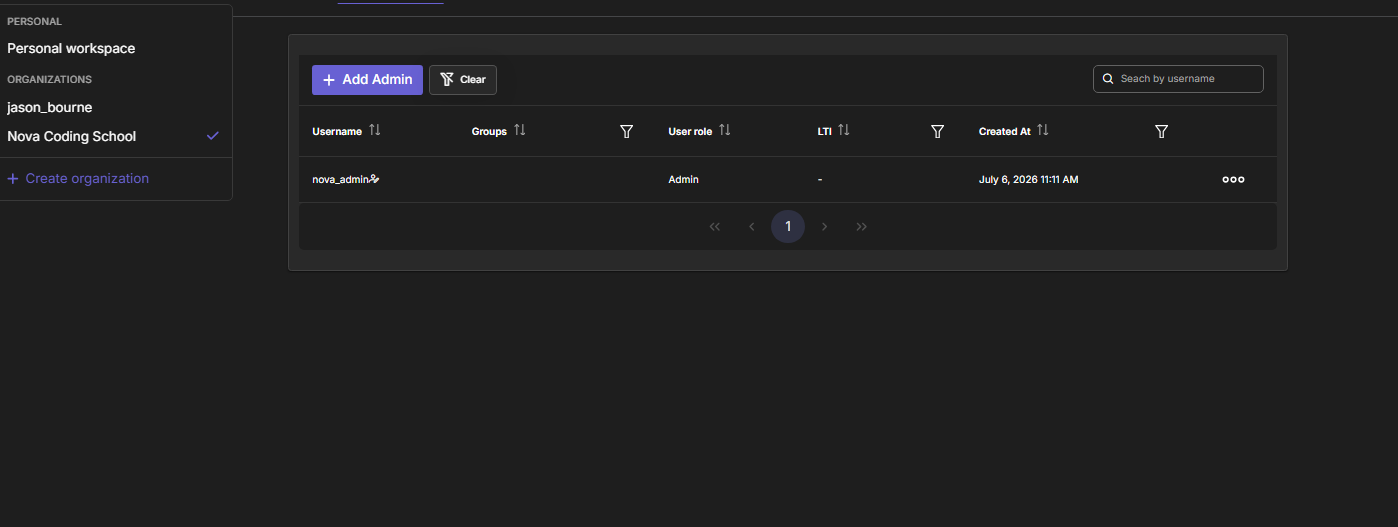
The Users page changes the same way — jason_bourne lists many students, while Nova Coding School has just one admin:
"Select an Organization Workspace" Message
Some actions — creating a contest or assignment, or listing and managing groups and students — require an organization to be active. If you try one of these while no organization is selected, DojoCode will ask you to select an organization workspace first.
If you see this message, open the workspace switcher, pick the organization you intend to work in, and retry the action.
Launching From an LMS (LTI)
If your users reach DojoCode by launching it from Moodle or Canvas, the correct workspace is chosen for them automatically: the launch enrolls them into the LMS's organization — teachers as admins, learners as members — and sets that organization as their active workspace. They arrive already in the right place, with no manual switching needed. See Organizations & LTI.
Related Pages
- Organizations Overview — the big picture of workspaces and what they contain.
- Roles & Permissions — what each role can do inside a workspace.
- Managing Members — build the roster for the workspace.